What Hardware Should Run Your Touchscreen Kiosk?
When a kiosk project starts, the first conversations are about software, content, and interface design. Hardware gets treated as an afterthought. That’s where most of the trouble begins.
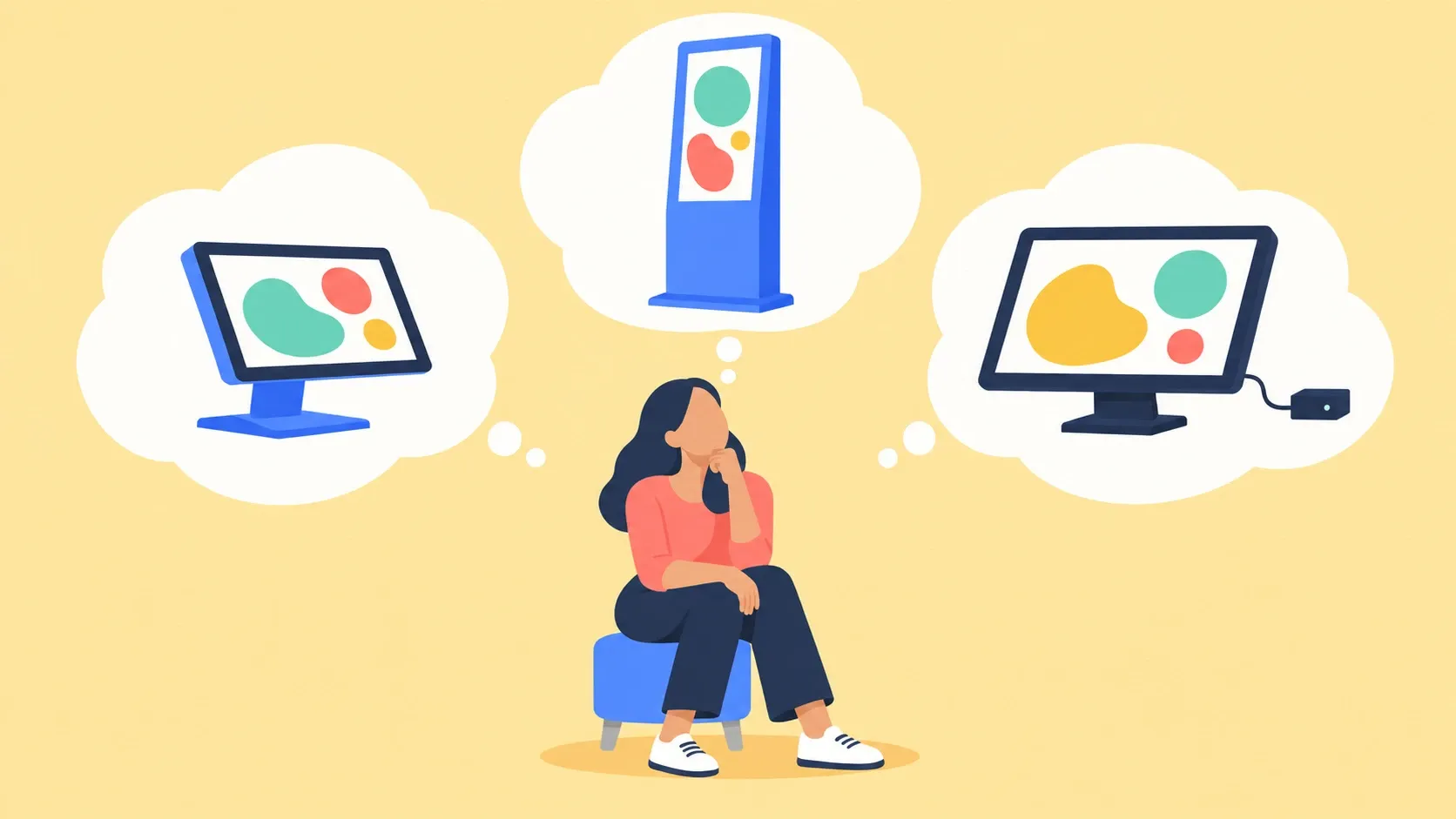
Last year, a US nonprofit preparing a traveling exhibition sent us the four screens it was weighing, including an Android all-in-one. Its PandaSuite project could run on all four. We recommended a separate screen driven by a Windows mini PC, and 1080p rather than 4K, which needs a stronger machine for the same content. The question was never whether the project would run, but on which machine.
On the software side, the choice stays open. PandaSuite doesn’t sell hardware, and the same project exports to Windows, macOS, Linux, Android, iPad, or as a web app. To choose the software itself, three criteria matter most: creative freedom, kiosk mode, and offline operation. Our guide to choosing interactive kiosk software covers them in detail.
On the hardware side, not everything is equal, especially for media-heavy projects. A quiz or a catalog runs fine on a modest machine; a 4K video, a very large screen, or a 3D scene needs a stronger one. And the screen’s responsiveness matters as much as the machine’s power. Location matters too: a kiosk that stays on all day in a quiet room needs a different setup than one at a trade show that lasts a few days. Here’s what we look at on the projects we support.
Three Questions That Decide the Machine
What content will your interactive experience run? A quiz, a presentation, a catalog to browse: an all-in-one is enough, whether a tablet or a screen with built-in Android. A 4K video, a very large screen, 3D, a printer, or a connected sensor: go with a Windows mini PC.
Where, and for how long? In a quiet room, pick a fanless machine so it doesn’t bother visitors. On all day in a lobby or behind a shop window, pick a machine with a fan, which handles heat better. At a trade show, pick a machine that travels well: a mini PC in a case, labeled cables, and a one-page startup procedure. If the network isn’t reliable everywhere, everything has to run locally, on an SSD rather than a microSD card, which wears out.
Who looks after it? With no IT person on site, you need a machine that restarts straight into the app. Its USB port should be reachable without opening the case. With several sites, you need a remote management tool, chosen separately (PandaSuite doesn’t provide one) and planned from the day you buy.
All-in-One or Screen with a Mini PC?
Something behind every kiosk runs the project. Models are countless, but they fall into two families. Either everything is in the device, or the screen is connected to a separate computer.
The all-in-one is now the most common: the processor is inside the device, with nothing to wire. The project installs like an app, then gets locked in kiosk mode in the device settings. Only the size changes with the location: a tablet, iPad or Android, in a secure stand for a counter, a booth, or an information point; a large screen with built-in Android, from 32 to 86 inches at Philips, iiyama, or Displays2Go, for a lobby or a gallery, where the app often installs from a USB stick.
It’s the simplest choice for light content. Its limit: the built-in processor is often weaker than a recent phone’s, and if the device fails or can’t keep up later, you replace the whole unit.
Check two things before you buy. First, the Android version. An event agency in Canada wrote to us on the day it was delivering two kiosks with built-in Android screens. On the Android 11 kiosk, the project ran, with some lag it didn’t have on a phone. On the Android 7 kiosk, nothing would open. We fixed it the same day, and the agency re-exported and delivered on time. A recent Android version avoids that kind of day altogether. Second, the device’s actual system. Samsung screens run Tizen, and LG screens run webOS. That isn’t Android: the app won’t install, and the project runs as a web app in their browser.
A screen connected to a Windows mini PC gives you the most room. Every authoring tool runs on it, and kiosk mode is built into the exported app. It handles heavy experiences: real-time 3D, live data from an API, a printer, scanner, or sensor plugged in. The trade-off: more expensive, hotter, and often a fan.
Which models? You don’t need high-end hardware. The best value is a refurbished business mini PC (Dell OptiPlex Micro, HP EliteDesk Mini, Lenovo ThinkCentre Tiny) with 8 GB of memory and an SSD; save the Core i5 and 16 GB for 4K or 3D. Save on the computer, not on the screen: pick a commercial display like the TouchWo HR43, or the Elo 4303L for a kiosk under heavy use, rather than a TV. We don’t sell any of these models and haven’t tested all of them: they’re the ones we suggest to our customers.
There are also Android boxes that plug in behind a regular screen. Digital signage players like BrightSign (XD6 series) can run the project as a web app in their browser.
Test Before You Order in Bulk
Hardware isn’t the glamorous part of a kiosk project. But it’s the part you remember longest when you get it wrong.
The classic mistake is choosing from a slick showroom demo. The fix: test your project, with its real content, on the machine you’re aiming for, before you order ten.
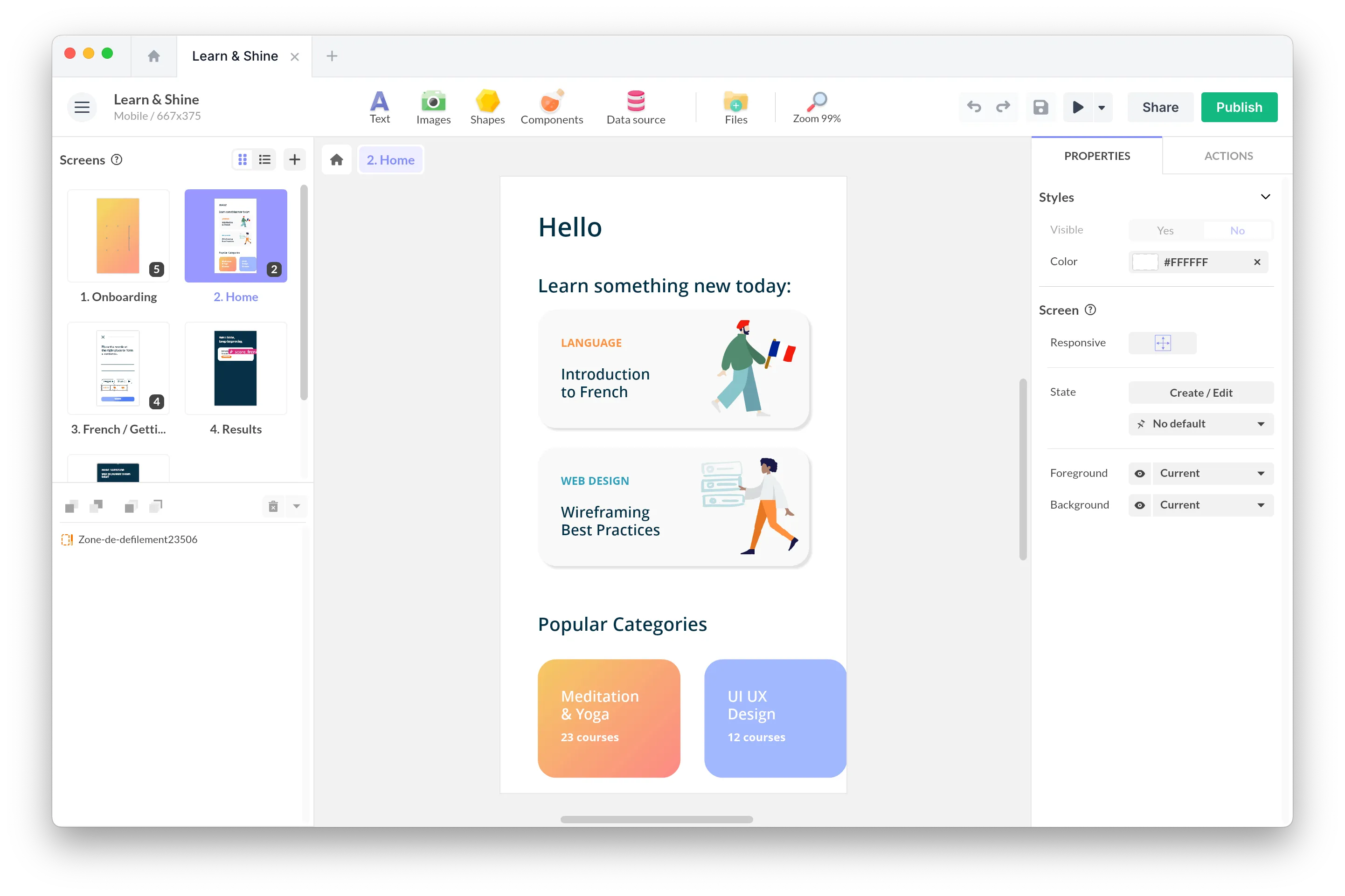
That test doesn’t require buying machines in bulk or paying for a plan. A free PandaSuite account, limited to one project, is enough to build and test it: PandaSuite Viewer opens it on a tablet or an Android device, and a share link opens it in a computer’s browser. Since the same project runs on Windows and Android, you can try both families of machines without rebuilding anything. You only pay once you publish or export the app, and the final version gets checked on the exported app, before rollout.
Test the screen’s responsiveness too. A screen that responds with even a slight delay makes the whole project feel slow, even on a fast machine. On the real machine, with the real cables, draw a quick line from edge to edge, swipe, and pinch to zoom. If the line doesn’t keep up with your finger, change the screen before you change the PC.
To design the experience itself, once the machine is set, see best practices for touchscreen experiences.
Torn between two machines for your kiosk? Write to us with your content and your location: we’ll tell you which one we’d pick.