Tue, Mar 24, 2026
Kiosk Mode Explained: Windows, iPad, Android & ChromeOS
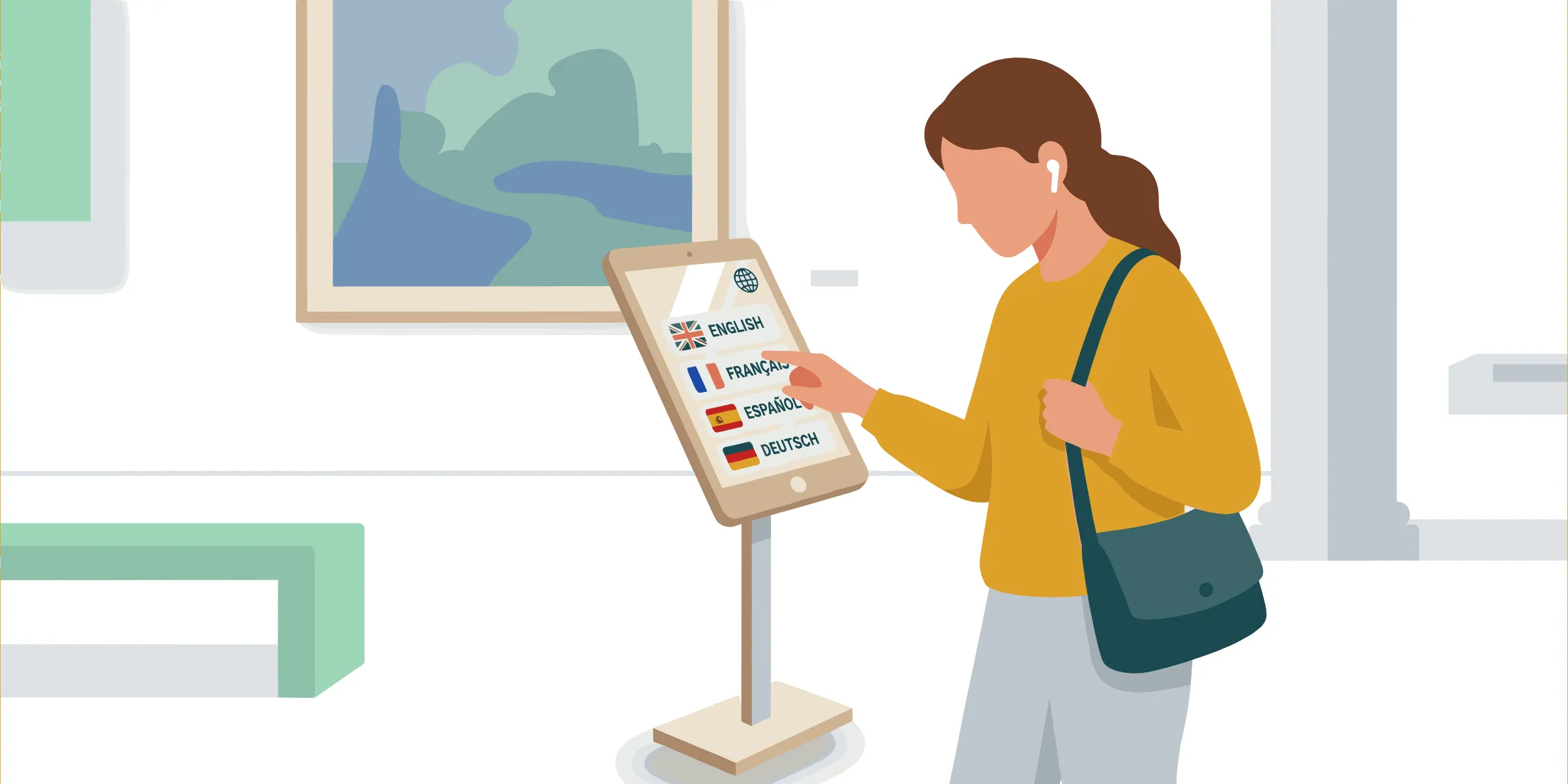
You’re designing a touchscreen experience for a public or semi-public environment. And then someone asks THE question: “How do we stop visitors from closing the app or browsing the internet?”
And just like that, you’re researching kiosk mode.
Kiosk mode is the operating state that locks a device (a tablet, a touchscreen terminal, a wall-mounted screen) to a single application or a defined set of applications. Users can interact with your content, but they can’t exit to the home screen, open another app, or change device settings.
To deploy successfully, understanding how kiosk mode works is as important as knowing how to choose the right interactive kiosk software and design the interactive experience itself.
This article explains what kiosk mode really is, how each major platform implements it, and what it means for the design of your app.
What is kiosk mode?
At its core, kiosk mode solves a simple but critical problem: a device meant for one purpose must stay focused on that purpose, even when left unattended (or worse, with overexcited kids).
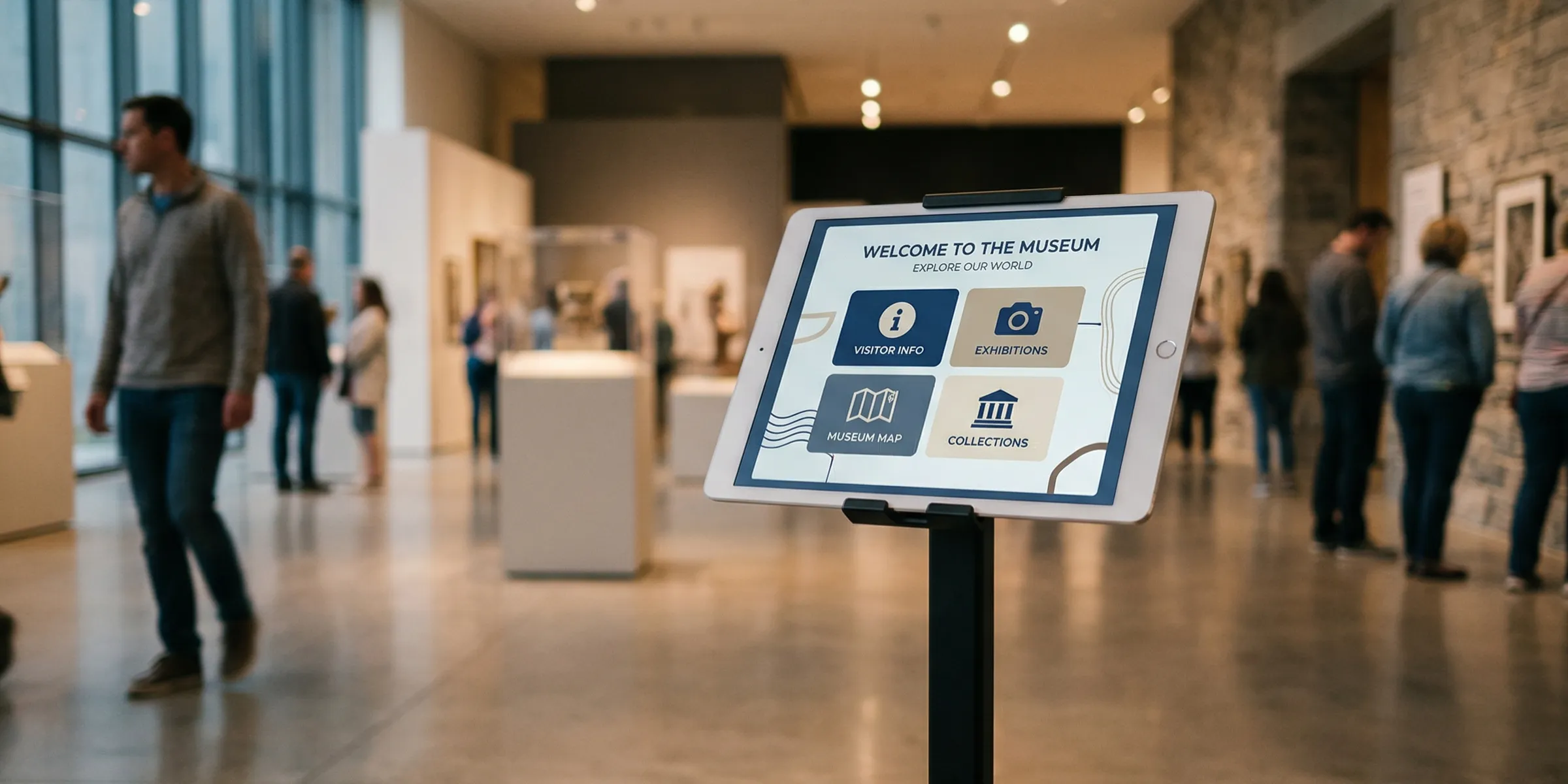
The mechanism varies by platform, but the principle is the same:
- The device boots directly into your application.
- Navigation gestures, home buttons, and status bars are hidden or disabled.
- The system-level UI disappears, and the app becomes the entire screen.
- From the user’s perspective, the device is the experience: there’s no operating system to escape to.
Single-app mode vs. multi-app kiosk mode
Most kiosk deployments run in single-app mode: one application, full screen, no exit. This is the right choice for most interactive experiences: a product configurator, an information terminal, a check-in station.
Multi-app kiosk mode allows a predefined set of applications to run together. You might use it when your deployment requires a browser alongside a companion app, or when a reception terminal needs both a video call tool and a building directory. The underlying principle is the same (the user can’t stray outside the approved list), but the configuration is more involved and typically requires an MDM solution to manage properly.
App-level vs. OS-level lockdown
This distinction matters more than most guides acknowledge. App-level kiosk mode is enforced by the application itself: it hides navigation elements, disables back gestures, and removes any visible path to the rest of the device. It’s faster to implement and sufficient for supervised contexts: a sales demo station manned by your team, or a training terminal in a controlled room.
OS-level lockdown is enforced by the operating system, making it impossible for the user to reach another app even if they know the tricks. For unattended public deployments (a lobby terminal, a museum touchscreen, a retail fitting room display), OS-level is the right choice. App-level alone isn’t enough when you can’t be sure who will be using the device, for how long, and with what intentions.
Kiosk mode by platform
Each major operating system has its own implementation of kiosk mode, with its own terminology, setup path, and constraints. Knowing which mechanism you’re working with matters before you design your app, because each one imposes different limits on what the experience can do.
Windows: Assigned Access
Windows implements kiosk mode through a feature called Assigned Access, accessible in Settings under Accounts. You create a dedicated local user account and assign a single UWP or Microsoft Edge app to it. When that account is active, the device launches directly into the assigned app: no taskbar, no Start menu, no way out without the administrator PIN.
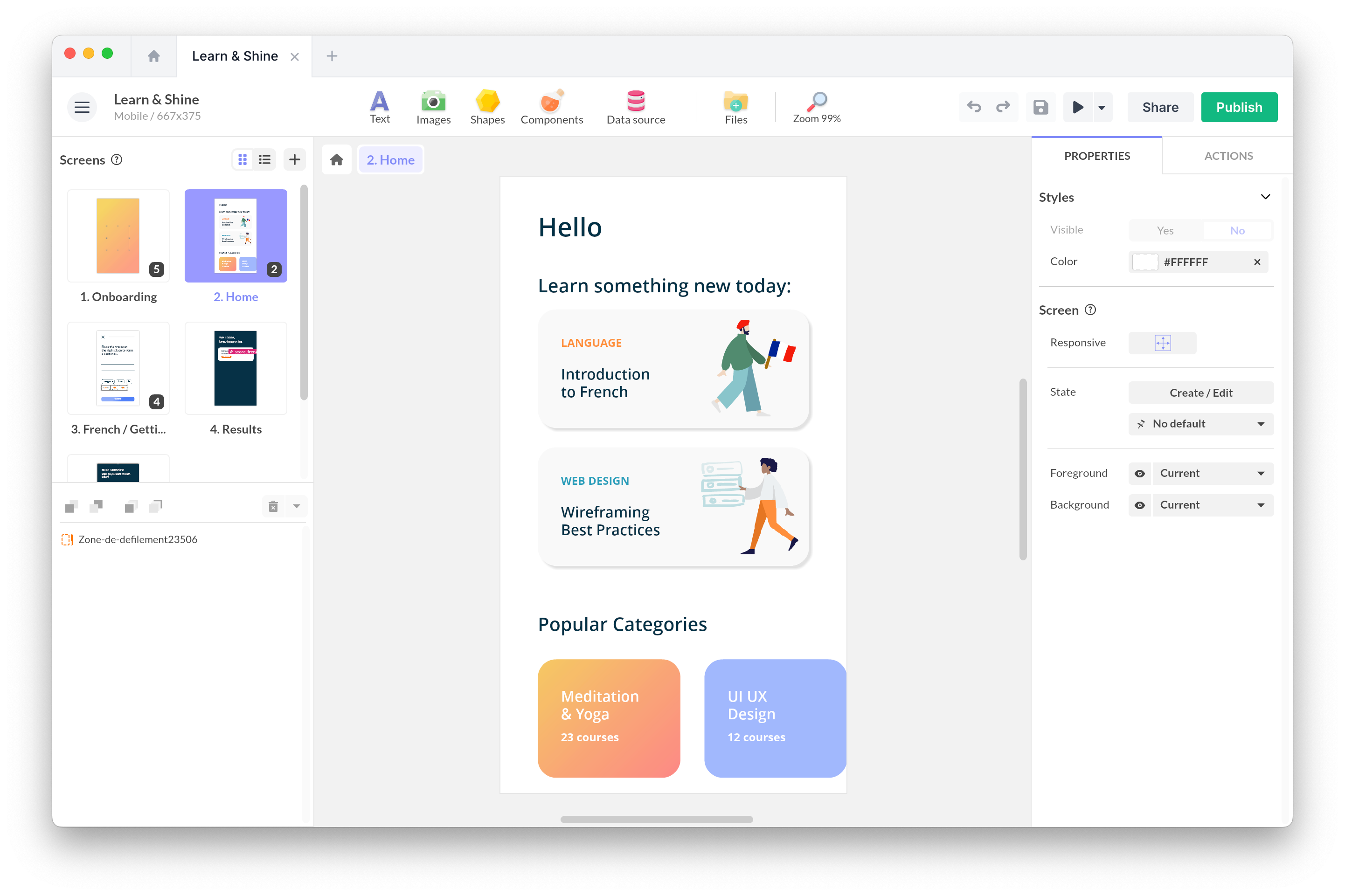
PandaSuite also introduced native Windows kiosk mode support, meaning apps built on the platform can be deployed in this context without additional wrappers.
Learn more: Windows kiosk mode
For multi-app configurations or more complex deployments, Windows uses an XML provisioning file that defines which apps are allowed and how the shell behaves. At scale, this is typically managed through Microsoft Intune or a similar MDM platform.
iPadOS: Guided Access
Apple’s implementation is called Guided Access, and it works differently from Windows: it’s session-based rather than account-based. A staff member enables it by triple-pressing the side button, entering a PIN, and tapping Start. From that point, the iPad is locked to the current app until someone triple-presses again and enters the PIN to exit.
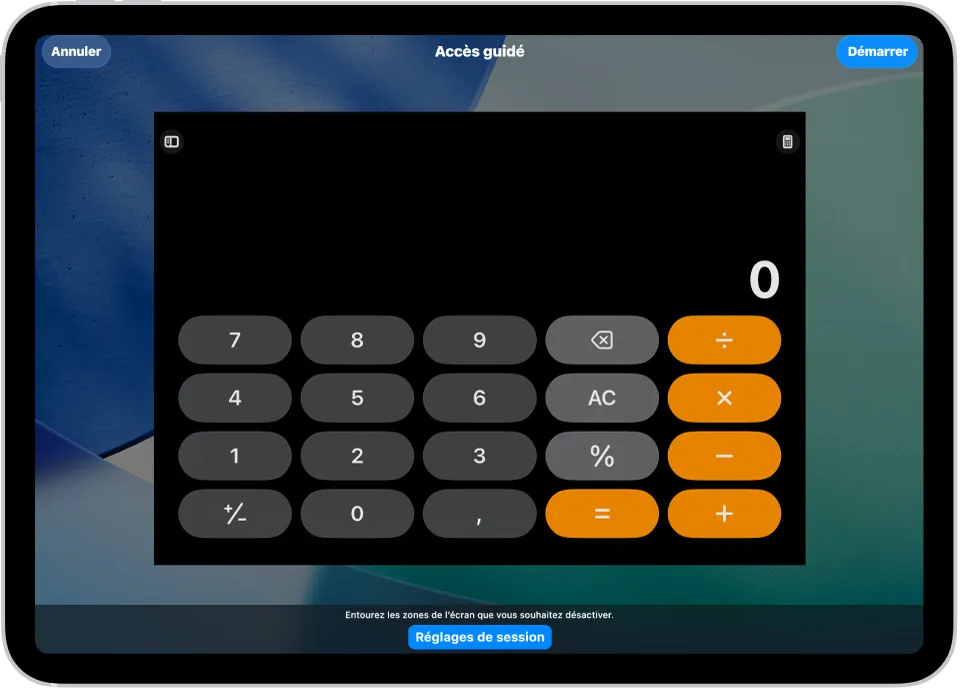 © Apple
The practical implication: Guided Access is excellent for supervised deployments where a staff member is present at the start and end of each session: museum visits, retail demonstrations, event check-ins. For fully unattended kiosks that must stay locked across reboots and without staff intervention, you’ll want to combine Guided Access with an MDM solution like Jamf or Mosyle, which can enforce the lock at the account level and manage it remotely.
iPadOS also supports Single App Mode via MDM, which is more robust than Guided Access for permanent installations: it survives reboots and doesn’t require staff to re-enable it each time.
Android: Dedicated Device Mode
Android’s kiosk story is more fragmented, partly because of the diversity of manufacturers and partly because Google has introduced dedicated device management at different layers over time.
At the OS level, Android’s Dedicated Device Mode (formerly called COSU, Corporate-Owned Single-Use) is configured via an MDM solution like VMware Workspace ONE or Scalefusion. It locks the device to approved apps on enrollment and survives factory resets if paired with the right provisioning flow.
At the app level, many Android apps implement kiosk behavior themselves, blocking the back button, hiding the navigation bar, requesting that the system not allow other apps to come to the foreground. This works reasonably well for supervised use but is easier to bypass than OS-level enforcement.
PandaSuite also supports native Android kiosk mode through a limited user profile, locking the device to the app without requiring a third-party MDM solution.
For budget Android tablet deployments in public environments, combining both layers is the safest approach.
ChromeOS: Managed Guest Session and Kiosk Apps
ChromeOS handles kiosk deployments through Managed Guest Session or Kiosk App Mode, both configured through the Google Admin console.
Managed Guest Session launches a browser-based session without a logged-in user, perfect for PWA-based experiences that run entirely in Chrome. Kiosk App Mode goes further: a specific Chrome app (or Progressive Web App) launches automatically on boot, full screen, with the browser UI stripped away.
ChromeOS kiosks are particularly common in education and public library settings, where device management is centralized and content updates need to be pushed remotely without physical access to the hardware. If your interactive experience is built as a PWA, ChromeOS is a natural and often underestimated deployment target.
What kiosk mode means for your app design
Beyond device configuration, kiosk mode implies a few important adjustments in the way you design your app.
Designing navigation for a locked environment
In a normal app, users have a safety net: the back button, the home screen, the ability to restart if something goes wrong. In kiosk mode, none of those exist. Your app is the only thing on the screen, and it needs to handle every state gracefully, including the ones users create by accident.
This means explicit “back” and “home” buttons within your interface, clearly visible and consistently placed. It means every dead end in your navigation has a way out. And it means your idle state (what the screen looks like after 60 seconds of no interaction) returns to a clear, welcoming home screen rather than freezing on whatever the last user left.
Idle reset and auto-restart behavior
An idle timeout is not optional for unattended kiosks. Without it, the device will accumulate unfinished sessions: a product page half-browsed, a form half-filled, a video paused mid-play. The next user encounters someone else’s session, which erodes trust and creates confusion.
The standard pattern is a countdown (“This screen will reset in 30 seconds”) with the option to cancel. Short enough that the next user doesn’t wait long; long enough that someone mid-task doesn’t lose their work without warning. The exact timing depends on the context: a museum audio guide benefits from a longer timeout than a retail checkout station.
Offline-first: why connectivity can’t be assumed
Public kiosk environments are reliably unreliable when it comes to internet access. Trade show halls have congested Wi-Fi. Museum basements have no signal. Outdoor installations have weather. Hotel lobbies have corporate firewalls.
A kiosk app that depends on live API calls or streaming content will fail in some of these environments, often at the worst possible time. The right approach is to bundle all essential content locally (images, text, video, audio) and treat connectivity as a bonus rather than a requirement. Remote content updates and usage analytics can sync when a connection is available; the core experience should never need one.
This isn’t just an engineering consideration. It’s a design constraint that affects how you structure content, how you handle media, and how you think about update cycles.
Accessibility in kiosk deployments
Public-facing kiosks in many jurisdictions carry legal accessibility obligations. In the United States, the ADA applies to self-service kiosks; the European standard EN 301 549 governs digital accessibility for publicly funded technology. Practically, this means adequate font sizes, sufficient color contrast ratios (WCAG AA minimum), support for alternative interaction methods where relevant, and physical hardware placement that accommodates wheelchair users.
Accessibility also makes kiosks more robust. High-contrast text that works for visually impaired users also works in brightly lit environments. Large touch targets that work for users with motor difficulties also work with gloved hands. Designing for accessibility and designing for durability often point in the same direction.
In conclusion
A kiosk configuration is invisible when it works. It becomes the only thing everyone talks about when it fails. Let’s avoid that scenario.
The choice of locking mechanism, idle reset behavior, offline resilience: all of these deserve the same attention as the experience itself. A kiosk that breaks in public doesn’t just fail one interaction: it damages trust in the entire project.
FAQ
What is kiosk mode?
Kiosk mode is an operating state in which a device is locked to a single application or a defined set of applications, preventing access to the broader operating system. It’s used in public and semi-public environments: information terminals, interactive displays, self-service stations, where the device must serve one purpose reliably and securely.
What is the difference between single-app and multi-app kiosk mode?
Single-app mode restricts the device to exactly one application, which launches automatically and can’t be closed. Multi-app mode allows a predefined list of applications (useful when a deployment needs multiple tools running together), while still preventing access to anything outside that approved list.
Do I need an MDM solution to deploy in kiosk mode?
Not always. For small deployments with staff supervision, native OS features like Windows Assigned Access or iOS Guided Access can be configured manually. MDM becomes necessary when managing multiple devices remotely: pushing updates, enforcing policies, and monitoring device health across many locations without physical access to each one.
What is the difference between app-level and OS-level kiosk lockdown?
App-level kiosk mode is enforced by the application: it hides navigation elements and prevents the user from reaching other apps through the interface. OS-level lockdown is enforced by the operating system itself and is harder to bypass. For unattended public deployments, OS-level is the appropriate choice.
Can a kiosk app work without an internet connection?
Yes, and for public deployments, it should be designed to. Trade show halls, museum basements, and outdoor installations often have unreliable or no connectivity. A well-designed kiosk app bundles its content locally and treats connectivity as optional, syncing analytics and updates when a connection is available rather than depending on one to function.
What accessibility requirements apply to public kiosk deployments?
Public-facing kiosks in the US are subject to ADA requirements; in Europe, EN 301 549 governs digital accessibility for publicly funded technology. In practice this means meeting WCAG AA contrast standards, using touch targets large enough for users with motor difficulties, and considering physical placement for wheelchair accessibility. Many of these requirements also improve usability for all users in challenging environments.
How does kiosk mode work on ChromeOS?
ChromeOS supports two kiosk configurations: Managed Guest Session (a browser-based session without a logged-in user, suited for PWA experiences) and Kiosk App Mode (a specific Chrome app that launches automatically on boot, full screen, with browser UI stripped away). Both are configured through the Google Admin console and managed remotely, making ChromeOS a strong choice for organizations already in the Google ecosystem.
What should I configure for idle reset in a kiosk?
A 30-90 second idle timeout is standard for most contexts, with a visible countdown and the option to cancel. The timeout should return the device to the home screen and clear any user data from the session. The exact duration depends on the interaction length your experience expects: a quick product lookup warrants a shorter timeout than a guided museum tour.